

You can protect your home network from hackers by changing the router’s default admin name and password, turning on WPA3 or WPA2 if that’s all you have, and pushing firmware updates every month.
These three steps block nine out of ten drive-by scans that pummel U.S. Cable and fiber lines.
Below, you’ll see a room-by-room checklist that matches your average L.A. Apartment, suburban Phoenix house, or Chicago condo.
Your Network’s First Defense
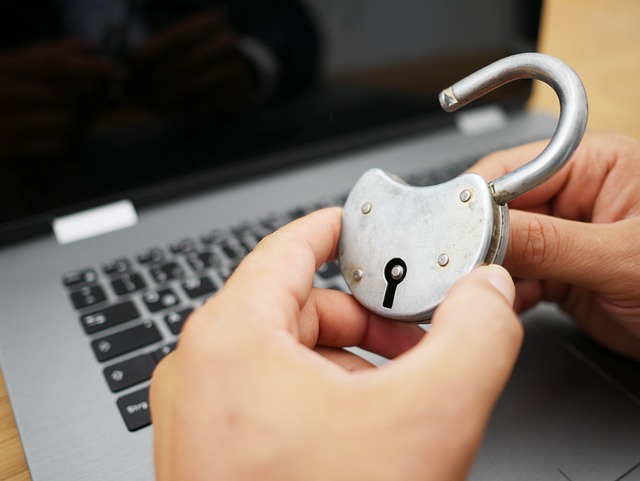
A home router is your network’s first defense, acting as the gate between the open web and every phone, TV, or smart switch in the house. If that gate lolls on rusted hinges, anyone can stroll through, risking unauthorized access. Start with three basics: where the box sits, its default SSID, and how fresh its security settings are.
Router Placement
Don’t stick your router in a window looking at the street. Put it right where you hang out, and anywhere the signal leaks to the sidewalk is signal a parked car can scavenge. Raise it two shelves up. Waist level keeps it safe from water heaters and metal desks that absorb waves.
Face it front toward away from any shared walls in townhomes. That’s all it takes. A neat 45° spin can easily drop neighbor-side signal by 30 dB. This is enough to keep even nosey teens raising SSID fuzz on a basic laptop.
If the house has a yard office or garage, run a cheap Cat-6 cable and stick an old second router out there instead of cranking broadcast strength to max. Overkill range just invites war-drivers on Hillhurst or Venice Blvd to log your MAC.
Default Credentials
‘admin / admin’ still ships on half the models sold at Best Buy. Bots know this and scan Charter and ATT IP blocks all night. Choose a username other than “user” or the address, then type in a 14-character phrase like “Fork!Rain?Coat7”.
Jot it on painter’s tape and slap it inside the battery drawer—no cloud vault necessary. Turn off remote management unless you actually repair routers from a beach in Maui. One switch off stops 90% of drive-by login attempts.
Finally, after the modification, reboot once so the new creds bake into the config file. Some older Netgear boxes hold RAM copies until electricity cycle.
Firmware Updates
On ’em all every July and January—make it “router” in the phone calendar. Open the page at 192.168.1.1, click Firmware, then Upload. Five minutes now trumps a week of strange redirects later.
If the brand pushes security only micro-patches, flip on auto-update but still peek at the log once a month to verify install. When the model reaches end-of-life (around four years), replace it.
Without firmware, you won’t get any bug fixes for new WPA3 exploits. Save the receipt in Gmail so you know when the warranty expires. Places like Micro Center are fond of issuing $20 coupons for recycled gear.
How to Fortify Your Home Network

A $60 router often has default login credentials and a default SSID that everyone can Google; trade them both out to enhance your home network security before you even plug anything in.
1. Change Network Name
Pop open the settings page, ditch the default “NETGEAR-85” moniker, and enter something generic like “House-5G.” A boring name masks the brand so a drive-by scanner can’t identify the model or research factory vulnerabilities.
Omit your last name, address, or apartment unit since that information is all free on white-pages sites. Click Save, let the radios restart, and all the phones in the house will prompt for the new ID. That’s confirmation it worked.
2. Enforce Strong Passwords
Pull up the Wi-Fi password box and punch in sixteen random characters: uppercase letters, lowercase letters, digits, and symbols. Post it on a sticky note, give it to visitors, then remove it from the fridge after they depart.
Do the same for your admin login. Most people leave “admin/password” and wonder how the neighbor kid altered their DNS. Keep these two codes separate. Sharing one key is like using your debit PIN for Netflix.
3. Activate WPA3 Encryption
If the drop-down displays WPA3, select it. Older boxes say WPA2, that still beats “Open” or the WEP joke.
WPA3 blocks offline guessing, so regardless of whether a bad actor scoops up your data over the air, the file is static. Click once, wait 10 seconds, and enjoy years of tranquility.
4. Disable Remote Access
Disable Remote Management, WPS, and UPnP – three doors you never use. Remote web logins sound convenient until you discover they respond from any cafe in Kiev.
WPS lets guests tap a button instead of typing. Hackers can brute-force it in four hours flat. UPnP flings open ports for Xbox or Plex, but for phony printers that tunnel into your tax files.
Kill all three, reboot, and verify that the outside scan shows zero open ports.
5. Adjust Transmit Power
Turn the radio down from 100% to 50%. Signal still blankets the ranch-style house, but it cuts out at the curb.
A weaker wave means war-drivers have to park on your lawn, which is obvious even at 2 a.m. If you still have full bars in the street, dial it down to 25% and toss in an inexpensive extender in the back room instead of screaming harder from the closet.
Isolate Your Smart Devices

Smart plugs, doorbells and light bulbs chat with the cloud all day. If they get sick, they’ll cough malware onto your laptop! Separating them from the PCs and phones you rely on keeps the harm contained.
Activate the guest Wi-Fi slot in your router app with just two taps. Transfer all devices that claim “smart” or “IoT” to that new SSID. Conceal the primary network name so only trusted individuals encounter it.
Prevent “cross talk” in the application. The majority of ASUS, Netgear, or Eero menus refer to it as “AP isolation.” Don’t forget to replace the default password on every camera or bulb.
See if there’s a new firmware each month. If the brand forces auto-updates, keep ’em on. Pop outdoor equipment—such as the Ring floodlight or Rachio sprinkler—on its own separate visitor port.
These units sit exposed and get prodded initially. Maintain a paper list of MAC addresses. When a rogue one pops up, you’ll catch it quick.
The IoT Problem
Inexpensive chips embedded in $29 switches ship with outdated Linux builds that aren’t patched. Default credentials sit hard coded. Shodan has fifty thousand such cameras in L.A. County alone.
One compromised baby monitor can roam the entire 192.168.1.x space and leak your tax file. Botnets like Mirai dig low-energy ARM boards. They convert vacuums into DDoS cannons.
Most manufacturers market features, not solutions. A fridge that orders milk chats with half a dozen cloud IPs. All are doors you had no idea you possessed.
Guest Networks
Visit your router page (probably 192.168.0.1) and switch on the “Guest” toggle. Call it something boring—HomeIoT—and a long key you keep in a notes app. Pull all your Rokus, Alexa, and WiFi switches into that list.
Laptops remain on the primary net. Now when friends come over, pass them the guest key instead of your bank password. Turn the guest slot to ‘no local access.
For Linksys, it’s a checkbox called “Isolate clients.” This prevents the vacuum from pinging the NAS.
Network Segmentation
If your gear supports VLANs, tag port 3 on the switch for VLAN 30 and park all hubs there. Ubiquiti users can draw a simple rule: VLAN 30 can reach WAN, never LAN.
No VLAN? Purchase a $29 travel router, connect its WAN to your primary LAN, and allow IoT devices to reside behind NAT layer 2—an inexpensive separation without additional wiring.
Block mDNS relays so Chromecasts don’t brag on the wrong side. Log weekly. Anything calling home to Russia at 3am gets unplugged.
Advanced Protective Measures
Lock down the home network before the fridge starts spamming, ensuring robust network security beyond just changing the default passwords.
Custom DNS
Replace the ISP’s auto-DNS with a filtered one. Quad9 (9.9.9.9) or Cloudflare (1.1.1.2) blocks known bad sites before your phone loads them.
Setup takes two minutes in the router: open WAN settings, type the two numbers, and save. No additional app, no charge.
If the kids use TikTok on the iPad, the same screen allows you to inject a family-filter DNS, which is 1.1.1.3, so the clip loads but the sketchy link dies.
Test it: visit quad9.net/test. A green bar means the shield is up. If it doesn’t, clear the local cache by using ipconfig /flushdns on Windows and attempt it again.
Router-Level VPN
VPN on the router, not each laptop, hides every packet leaving the house. FlashRouters offers plug-and-play Netgear boxes with Nord or Surfshark pre-installed. Prices range from $150 to $250.
Upload speed decreases 10 to 20 percent, and banks and ISPs don’t see your real IP anymore.
Select a server city near you, Chicago for us midwesterners, to prevent Netflix from crying about proxies.
One glitch: if the tunnel drops, traffic can leak. Activate the “kill switch” on the VPN tab. It blocks the WAN with firmware until the tunnel is restored.
MAC Filtering
Each phone, bulb, or switch has a 12-digit MAC ID. Configure your router to admit only the IDs you enter. Outsiders receive a quiet eject even though they crack the WPA3 code.
Grab IDs fast: in Windows open Command Prompt, type “arp -a.” On iPhone go to Settings > General > About > Wi-Fi Address.
List piles up when friends come over. Most ASUS routers allow you to toggle “Allow new for 10 min,” so the guest phone connects. You check its box, then the door closes again.
Downside: MACs can be cloned. Combine this trick with WPA3 and a guest LAN so the danger remains minimal.
Checklist
- Configurable DNS to Quad9 or Cloudflare family filters.
- Flash router firmware quarterly. Subscribe to emails.
- Enable WPA3 or WPA2-AES if the ancient Xbox balks.
- Segregate IoT equipment to a separate SSID with its own VPN.
- Change passwords every 90 days. Save them in a local password manager.
- Turn on two-factor authentication at the router admin page. Use an app, not SMS.
Why You Need a Firewall
A home firewall acts as the intermediary between your modem and every device — phone, TV, laptop — in the house, enhancing home network security. It verifies every packet before it comes ashore, protecting against unauthorized access. Without it, your router’s NAT is the only gatekeeper, which was never designed to block cyber threats.
What It Does
Firewalls block malware, hacking attempts and any strange log in that you didn’t initiate. They act as a one-way digital barrier: your Xbox can still reach game servers, but a scanner in Ukraine can’t reach your Xbox.
One such rule, “drop all inbound TCP 3389,” can thwart an entire category of Windows break-ins that still hammer U.S. ISPs every day. The box logs every drop, so when your teen’s Chromebook suddenly pings a server in Moldova, you notice.
Finally, if one device does get sick, that wall slows the spread to the rest of the LAN, giving you time to yank the plug before ransomware encrypts the family photo drive.
Core Features at a Glance
|
Feature |
Everyday Benefit |
|---|---|
|
Stateful packet check |
Knows the difference between a reply you asked for and a cold call |
|
Geo-block |
Cuts traffic from whole countries you never contact |
|
VLAN guest Wi-Fi |
Keeps visitors off your printer and NAS |
|
IPS add-on |
Drops exploit kits before they reach the browser |
|
VPN server |
Lets you bank safely on Starbucks Wi-Fi without exposing home IPs |
How to Configure
Most people bypass setup since the box comes from the factory “wide open.” That’s akin to locking your front door but leaving the screen door unlatched.
Plug it in, visit the web page listed on the sticker, and disable every inbound rule you didn’t create. Update the firmware first. Last year, Cisco discovered a zero-day in its small-biz line that allowed hackers to insert their own admin account.
Once patched, establish a new strong password and enable automatic updates.
Quick Start Steps
|
Step |
Where to Click |
Tip for U.S. Users |
|---|---|---|
|
1. Flash firmware |
System > Update |
Pull file from vendor’s .com site only |
| 2. Change admin port | Admin > Access | Move off 8080 to reduce scan noise |
| 3. Deny all inbound Rules from WAN to LAN. Add “allow” afterwards if necessary |
| 4. Enable logging | Status > Logs | Mail to a low-cost USB so you maintain evidence |
-
Save config! Maint > Backup. Email the file to yourself for quick restore.
Next, make two VLANs: one for your banking PC, one for smart bulbs. That way when some cheap plug from Amazon tries to phone China, it can’t even see the PC.
Lastly, configure the IPS to block rather than alert. Alerts just clog up logs and blocks prevent issues.
Maintain Digital Vigilance
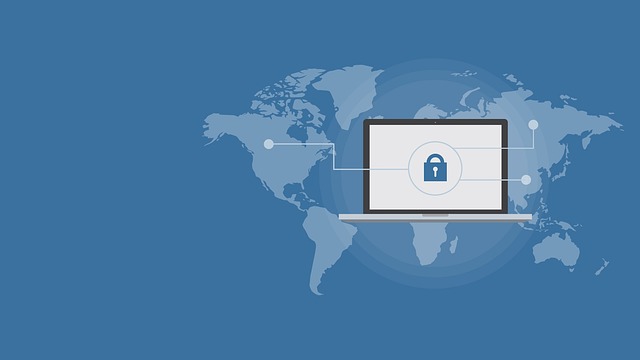
Hackers view an unprotected home Wi-Fi network as an open side door. A five-minute review of your router settings each week can significantly enhance your home network security before vulnerabilities arise.
Review Connected Devices
About: Keep Digital Watch
Pull up the router’s ‘Attached Devices’ or ‘DHCP Table’ and read every line. A Roku you purchased last month should appear. A mysterious Galaxy S23 at 2 a.m. Should not.
Kick randos off by hitting “block” or “remove,” then update the Wi-Fi passphrase. Phones, TVs, and gameboxes lurk in the list under weird names like “Espressif” or “IEEE-device”.
Cross-check MAC addresses against the sticker on each gadget. If the label starts with DC:EF:09 and the table shows F8:E2:3C, you have a clone. Guest networks assist in this regard.
Shift the smart fridge, robo-vac, and bargain light bulbs to a secondary SSID so a compromised coffee pot cannot sniff laptop lane traffic.
Check Router Logs
Logs reside in the System or Administration tab. Scroll for repeated “admin login fail” lines from Russia at 04:15 Pacific. That is a brute-force script, not a sleepy teen.
Three fails in a row deserve an immediate password change and a 30 minute IP ban. Consider outbound ports as well. A burst of traffic to 8.8.8.8:53 is normal DNS, but 500 packets to 185.220.100.45:4444 indicates a reverse shell.
Copy the IP, paste it into ARIN’s lookup, and you’ll know if the far end is a shady VPS farm. If the log page is blank, enable “System Log” and “Connection Log” first, as most ISP-provided gateways come with logging disabled to reduce flash wear.
Make the buffer 512 kB and email the dump daily to a spare Gmail so you never miss a trail.
Spot Phishing Attempts
The phony “Firmware update required” e-mail is easy to detect when you know your router brand never sends you mail. Point your mouse over the button. If it ends in .top or .ru, drop it.
Texts pull the same sleight. Any communication that says something like “Xfinity found weak signal—click here” to your Verizon phone is a smish. Real Comcast alerts come through their app, not some bit.ly link.
Children receive game-code baits. A Discord DM offering free V-Bucks requests you to ‘log in via Epic’ on a page that duplicates the authentic one. Verify the URL bar.
If the padlock is to the left of a misspelled ‘epiicgames.com’, back away.
Conclusion
You changed the default admin password, updated the firmware, and quarantined the light bulbs onto their own Wi-Fi. That alone deters most crooks. Add the free router firewall, log checking with Sunday morning coffee, and your zip code’s drive-by script kiddies cruise on to more tender buildings. The house stays up, bills stay down, and Netflix never buffers.
Have ten silent minutes. Log in now, boot out any strange device, and save the new configurations. Lock the virtual door before you lock the physical one tonight.
Frequently Asked Questions
Is my L.A. apartment Wi-Fi an easy target for hackers?
Yes, if you still have the default login credentials for your router and broadcast your SSID, change them tonight to enhance your home network security and prevent unauthorized access.
Do I really need a separate network for my smart TV and voice assistant?
Where practical, put IoT devices on the guest SSID to enhance home network security, preventing a hacked Ring camera from accessing your laptop banking tabs.
Which router firewall setting do most Angelenos skip?
Turn off UPNP to enhance your home network security. It creates vulnerabilities in your firewall, potentially allowing cybercriminals to exploit ports while you stream Netflix.
How often should I reboot my router to kick off intruders?
Rebooting your home network once a week enhances your network security, helping to remove memory-resident malware and secure your internet connection against potential cyber threats.
Does a VPN protect my home network or just my phone?
For whole-home protection, deploy the VPN at the router level to enhance network security. Several ASUS and Netgear models at Best Buy on Pico Blvd can secure your home network.
Are free antivirus apps enough for Chromebooks?
Freebies catch browser debris, but premium suites include network traffic scanning that detects evil twin café hotspots, enhancing your home network security while working at Culver City coffee shops.
8 thoughts on “How to Protect Your Home Network from Hackers”